
Tiandy · Guide
Cameras and recorders in the EasyLive Plus app
Wi-Fi cameras and recorders on your phone, with a QR code.
Step 1 of 4
Power and indicator light
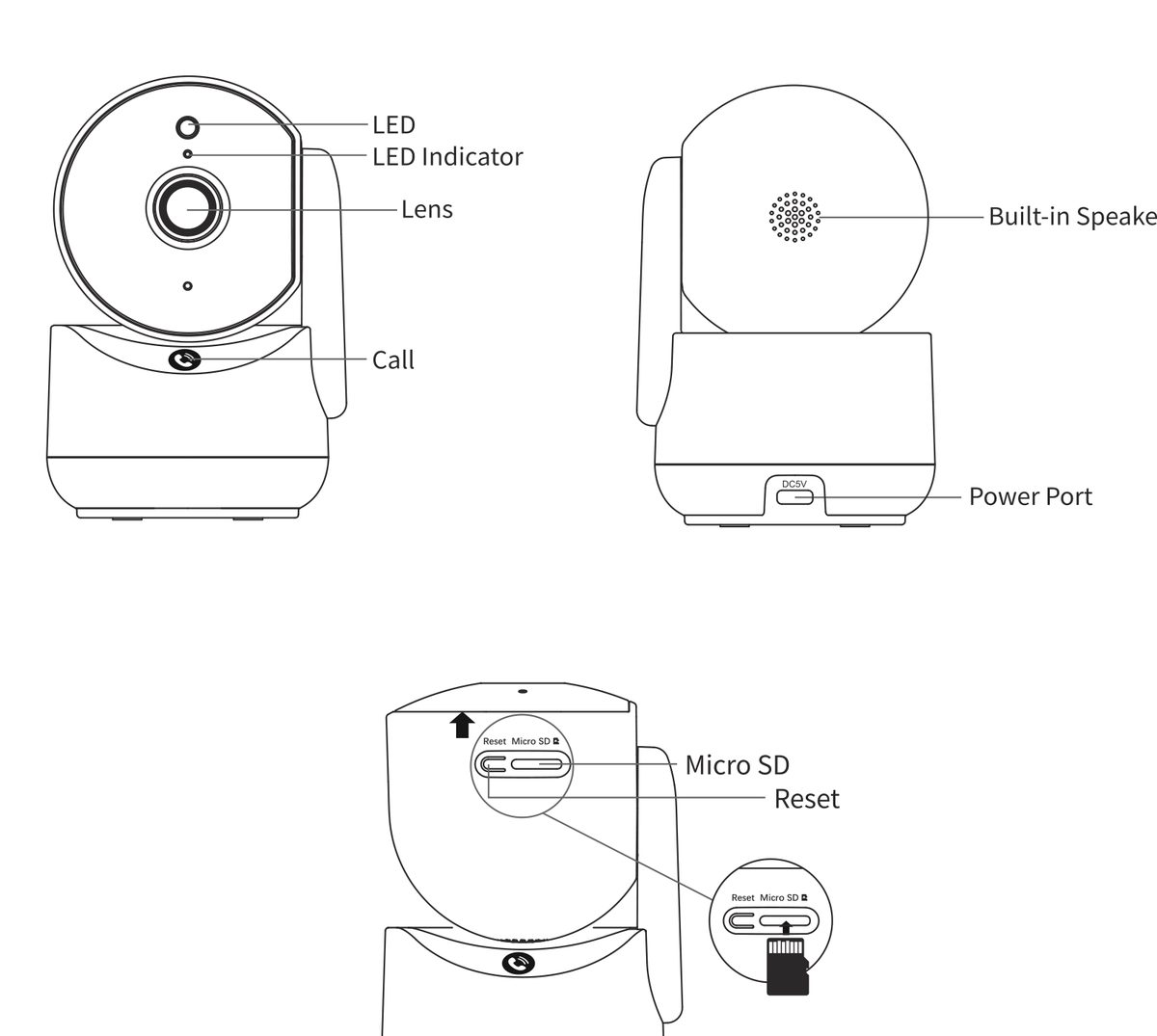
Connect the power adapter and watch the indicator light. Steady red: the camera is starting up. Flashing red: network error. Steady blue: the camera is waiting for network setup. Flashing blue: working normally.
Step 2 of 4
The app and the account
Download the EasyLive Plus app from the app store. Open it, tap register and create your account with your email address, following the steps shown.
Step 3 of 4
Adding a camera
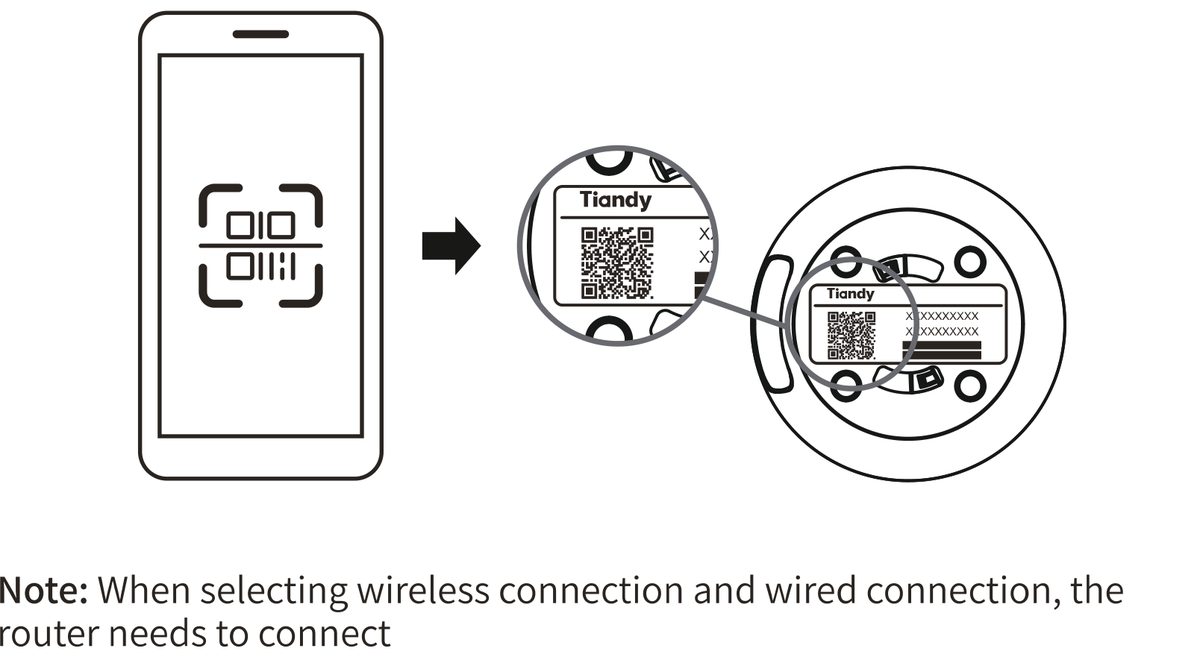
Connect the phone to Wi-Fi. In the app choose Add new device, then WiFi camera, and scan the QR code on the bottom of the camera or on its box. The camera can connect to the router over Wi-Fi or a network cable; either way the router needs internet access.
Step 4 of 4
Adding a recorder
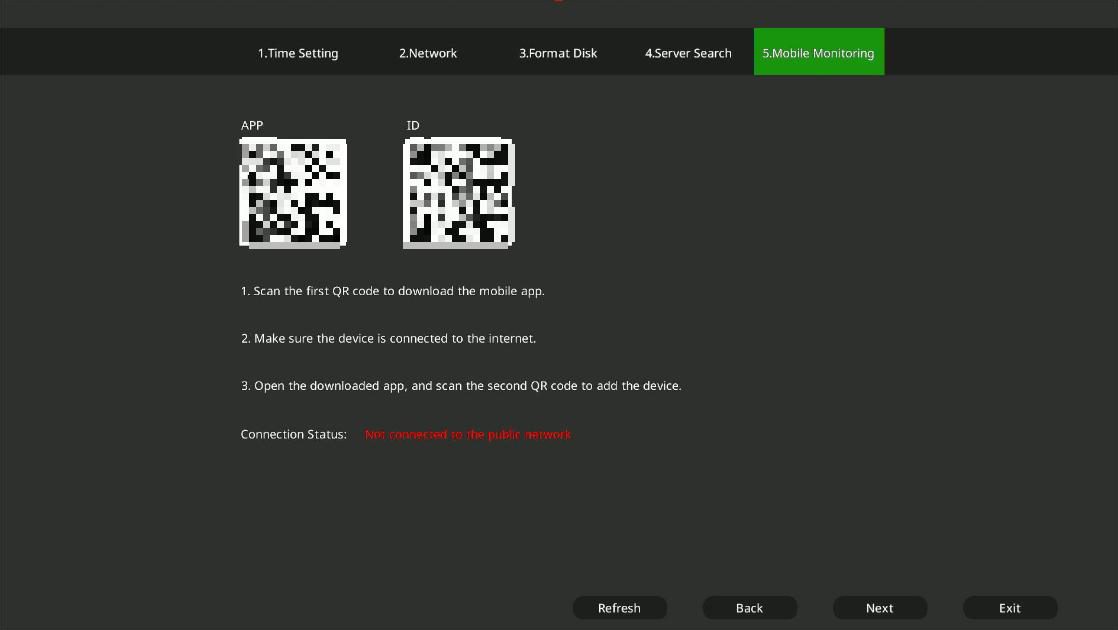
On the recorder's live view, move the mouse to the bottom of the screen and click the mobile access icon on the taskbar. The first QR code downloads the app; the second is the recorder's ID: scan it with the app.
Good to know: EasyLive Plus is available in 28 languages, including Hungarian.
Source: Wi-Fi camera quick start guide, "Quick operation"; NVR quick start guide, point 9. Screenshots from the manufacturer's manual.
Wi-Fi camera: quick start guide PDF · in English · 22 pages · 9.5 MB
More guides
Need help with the installation?
Send the exact camera and recorder models, the problem and what you have already tried. We reply by email. Do not send passwords.
On working days we reply the same day.
Write a message